
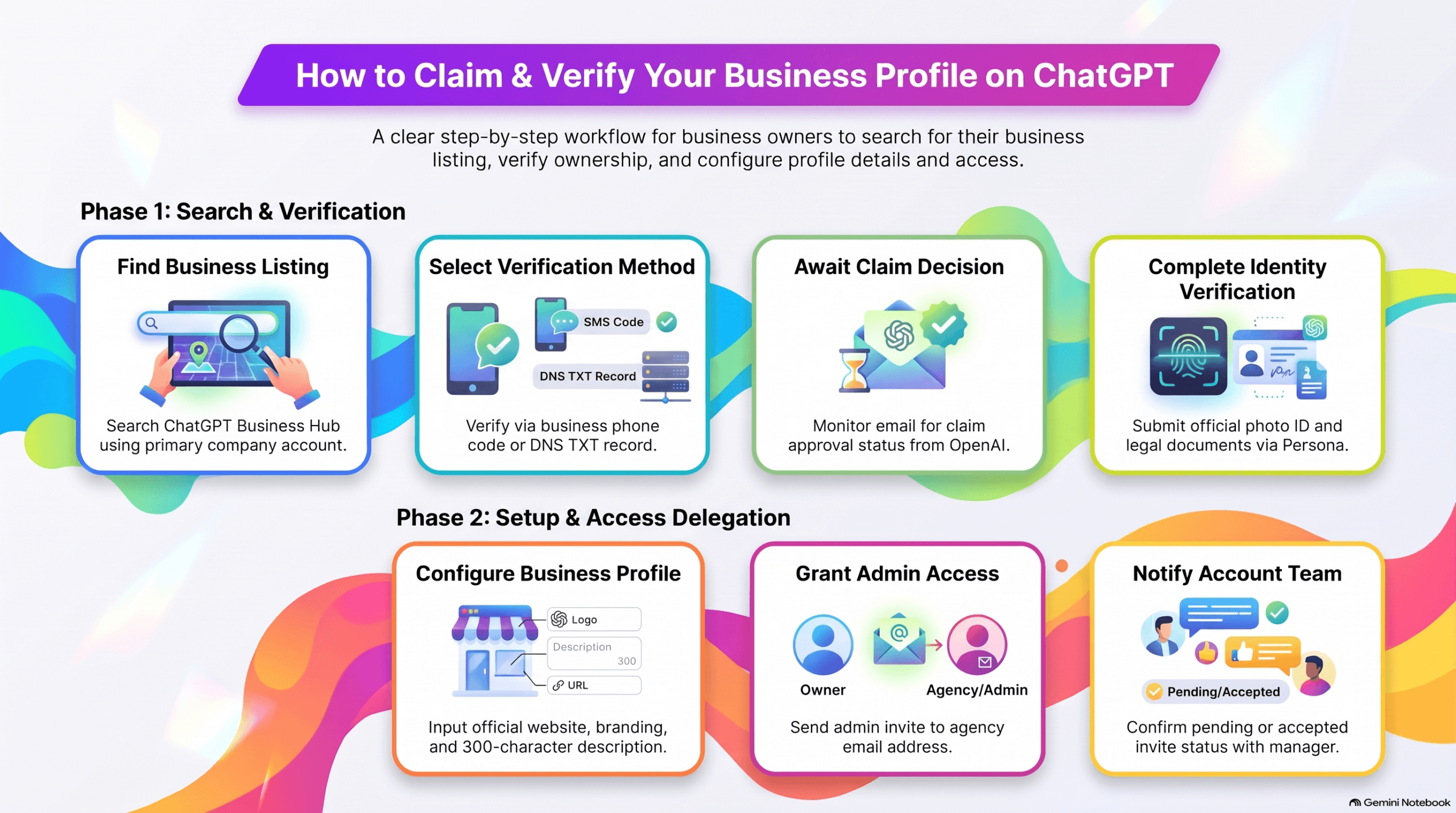
 ChatGPT now lets eligible businesses claim and manage their business profiles. Think of it a little like claiming your Google Business Profile: you confirm that you’re authorized to represent the business, check that its information is accurate, and decide who can help manage it.
There are a couple of verification steps, but you don’t need to be a technical expert to get through them. We’ll walk you through the process, and explain what to expect.
The short version
- Claim your business using a ChatGPT account your company controls.
- Complete the verification steps ChatGPT asks for.
Before you begin
Having a few details handy will make the process smoother:
- A ChatGPT account that your business will keep long-term. A company-managed email address is a good choice.
- Your legal business name, official website, address, and contact information.
- Access to the business phone and email address, or someone who can update your website domain’s DNS settings (your website developer or IT contact can usually help).
- A government-issued photo ID and business registration details, in case they’re requested during identity verification.
Step 1. Open Business Hub and find your business
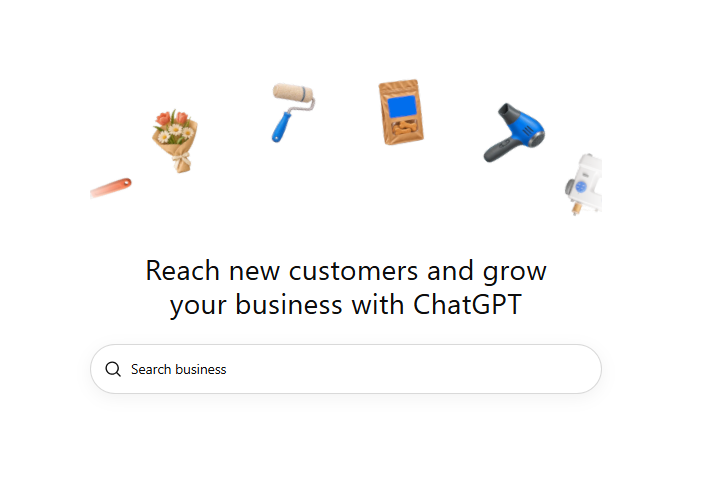
Sign in to ChatGPT at chatgpt.com. Once you’re signed in, click this link to the Business Hub; you can also open the business hub from the sidebar.
Search for your full business name. Choose the listing that matches your company. Double-check the website and location before continuing, especially if there are businesses with similar names. Eligible online businesses may be offered an option to add a listing if none appears.
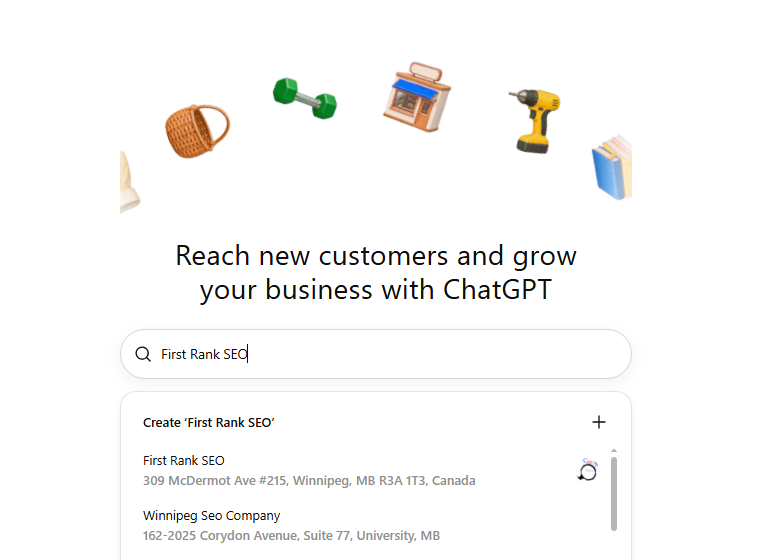
Example: choose the listing that matches your business. Do not create a duplicate if an existing listing is available.
Make sure you’re signed in with the account your company wants to use to manage the profile. That account will be important for future access. You may also encounter a waitlist while the feature is being rolled out.
If your business profile does not appear, you can click the + button next to Create ‘Your Business Name’ (seen as Create ‘First Rank SEO in the screenshot above). Follow the prompts to create your profile, then continue with the information below.
Step 2. Verify that you represent the business
Select the verification method ChatGPT offers for your business. You might see one or more of these options:
- Business phone: receive a code by text or automated call at the number shown.
- Website domain: add a DNS TXT record to your domain settings. It’s a small verification entry that proves you control the website domain; it doesn’t change the visible website.
If you use phone verification, simply follow the instructions on screen. If you choose website-domain verification, the next section explains how to get help.
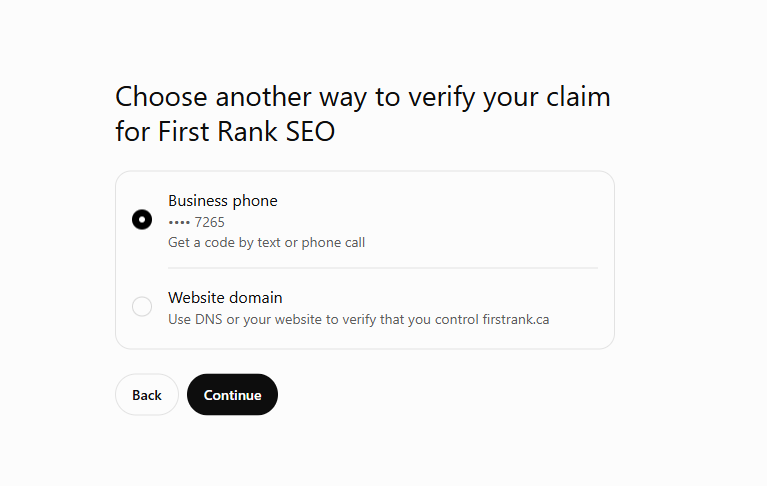
Example: First Rank’s verification choices. Your business may see different options.
Need help with a DNS record?
Don’t worry, you don’t have to figure out DNS on your own. Copy the record type, name/host, and value exactly as ChatGPT displays them. Send them to the person who manages your domain. If the screen shows an expiry time, include that too.
Here’s a message you can copy:
Hi [Name], I’m claiming [Business name] in ChatGPT Business Hub. It’s asking me to verify our website domain. Could you help add this DNS TXT record?
Record type: [exact type shown]
Name/host: [exact name shown]
Value: [exact value shown]
Expiry, if any: [time shown]
Please let me know when it’s live so I can return to ChatGPT and finish verification. Thanks!
Once the change is in place, return to your claim and select Verify domain. DNS updates can take a little time to appear, so don’t panic if the first attempt doesn’t go through.
Step 3. Wait for the claim decision
After you submit the claim, OpenAI reviews it and emails you with approval, a request for more information, or the next steps.
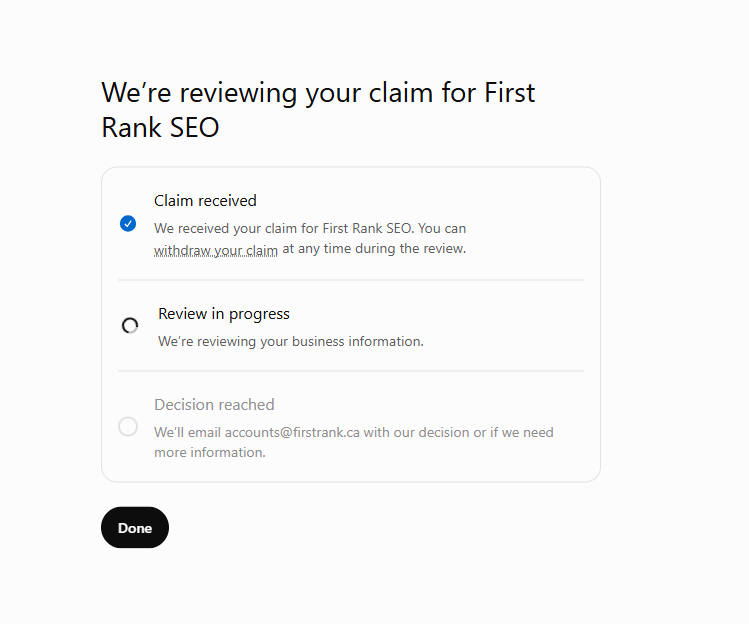
Example: a claim under review. Watch the email account used for the claim.
An approved claim is a great start, but it isn’t necessarily the final step. You’ll still need to complete identity verification before you can publish profile changes or view insights.
Step 4. Complete identity verification
ChatGPT uses a service called Persona to confirm your identity and your connection to the business. Follow the on-screen prompts. You may be asked for government-issued ID, a camera-based identity check, your registered business name, registration information, or proof that you’re authorized to represent the company.
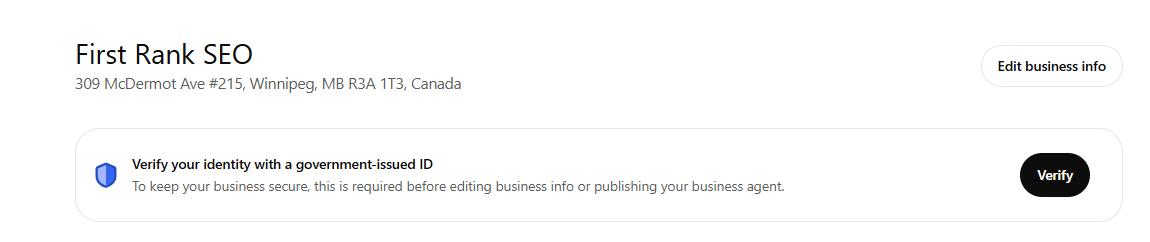
Example: select Verify from the business dashboard to start identity verification.
Use the legal name and details shown in your official business records. If your customer-facing name differs from your registered name, follow the separate legal-name and trade-name fields when offered.
Important: submit identification and other sensitive documents directly through the secure verification flow.
Step 5. Review your business profile
Once verification is approved, open the claimed profile in Business Hub. Here’s how:
- Sign in to ChatGPT using the account you used to claim your business.
- Open the Apps menu in the left sidebar. Depending on your ChatGPT layout, this may appear as a three-dot (…) icon.
- Select Businessfrom the menu, as highlighted in the screenshot below.
- Find and select your business to open its profile and dashboard.
Tip: You can also go directly to ChatGPT Business Hub; use this option if you do not see the three dots on your left sidebar.
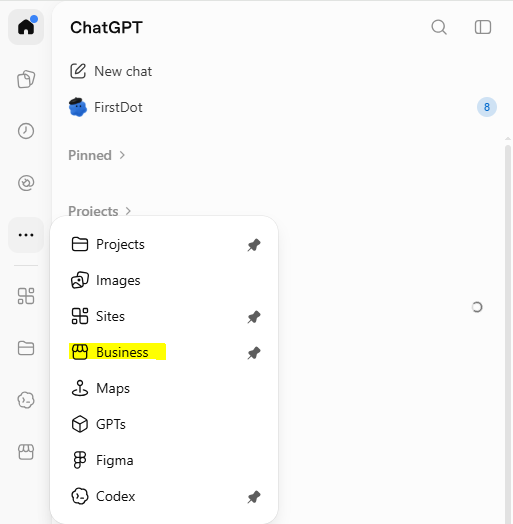
On The Web App
Confirm your:
- Business name
- Website
- Category
- Description (up to 300 characters)
- Branding
- Any other available details.
Add or update the information the dashboard lets you manage.
Use the same accurate business details you share on your website and other official profiles.
If you run into a snag
- Can’t find the business? Double-check its name and website.
- Verification won’t go through? Check the exact phone/email or DNS details and any error message. If you received a new DNS value, use the newest one.
- Still waiting for approval? Check the inbox tied to the claiming account and follow OpenAI’s instructions. Pending doesn’t mean rejected.
What happens after your profile is claimed?
Verified businesses can manage their information and view available insights, such as mentions, profile views, website clicks, and broad discovery topics.
One useful thing to know: claiming your business does not guarantee more ChatGPT recommendations. It helps you provide accurate information directly, while ChatGPT may still use your website and other sources when answering questions.
Visibility on AI platforms is becoming more important each year, and ChatGPT is the most popular AI platform on the market. We are thrilled that OpenAI has chosen to give businesses more control over their presence on ChatGPT. Our team is excited to help our clients boost their visibility on the platform by offering ChatGPT Business Profile management; contact us today for more information on our AI optimization services!
Jacob Kettner is the owner and CEO of First Rank Inc., a digital marketing agency based in Winnipeg, Manitoba. He currently sits on Manitoba Chamber of Commerce Small Business Advisor Council which assists people grow their small businesses in Manitoba.